Everything
you wanted to know about Zorin OS 12
by Pradeep Kumar · Published December
18, 2016 · Updated December 18, 2016
Windows XP along with Windows 7 is one of the most favored
operating system for millions of users around the world as of today, even
though Microsoft has washed their hands off these operating system. No support
for these platforms means, you will not get any security updates anymore and
your data may be at risk. But there’s always a solution for all you Windows
users, Linux is there for your rescue. And Zorin OS is one of the best desktop
distribution for Linux desktops and with the new release Zorin OS 12, it only
got better.
Unique Features
Zorin OS is a powerful and secure OS that has been specifically
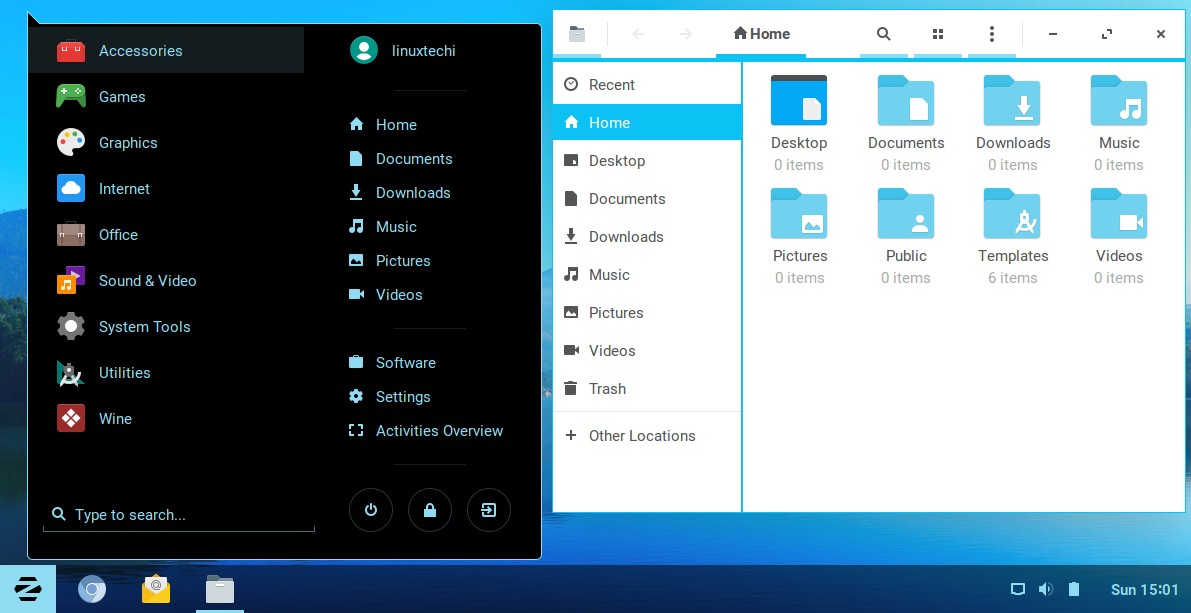
designed to replace Windows and MacOS. It almost mimics Windows OS in many
aspects like having a task bar at the bottom, system menu on the left side and
tray icons on the bottom right side. Zorin OS 12 is the latest release from the
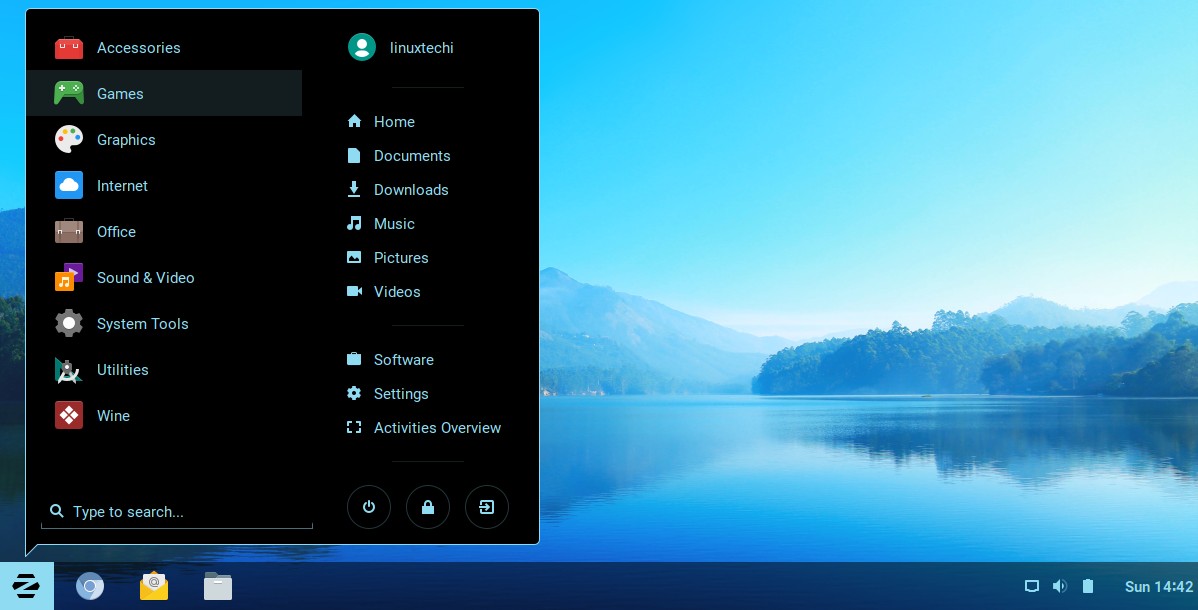
stables of Zorin group and the OS is based on the famous Debian Ubuntu.

The ultimate aim of launching Zorin OS is to ensure that Windows
users see this as an alternative to Windows OS and still enjoy most of the
features of Windows OS without any issues. Zorin OS distro is based on Ubuntu
on of the stable sources in Linux and Zorin OS 12 offers a lot of customization
options providing a completely new desktop experience you would you have ever
witnessed. Zorin OS 12 can certainly turn your computer faster, more powerful
and more enjoyable to use than ever.
Desktop 2.0
Zorin OS 12 comes with a completely redesigned desktop environment
Desktop 2.0 that is entirely powered by Gnome shell and comes packed with a lot
of new and exciting features. On newer computers, one can witness advanced
display features with Zorin OS 12, like the automatic scaling of the interface,
touch screen experience etc. Even the brightness can change according to your
environment’s lighting conditions, if you laptop comes with a built-in light
sensor.

Universal Search Feature
The universal search feature allows you to search for anything
that exists in your computer. You can find any of installed apps with ease
along with suggestions from Zorin OS 12 regarding new apps that are launched in
the software store. Files inside an app can also be searched using the
universal search feature. If you want to know the time of any city, just type
in the city name and the time will be displayed automatically and you can do
simple basic math calculations in the search bar with ease.

Improved Design
The design of Zorin OS bears a new and fresh look with dark tones
for the interface shell and a contrast color for the application windows to
provide a clear distinction between the two. Header bars is an excellent
addition which merges both your system UI buttons and app buttons in a single
bar, which also looks sleeker and saves a lot of space in your desktop. One of
the stunning features of Zorin OS 12 is the new icon theme which is based on
Paper that makes your desktop more attractive and modern.
Other Features
Some other features that is notable in Zorin OS 12 is the improved
activities overview feature, rich notifications functionality, the Zorin
Appearance functionality to change the look and feel of your Zorin OS, improved
software store, chromium web browser for faster browsing and enhanced Google
Integration support etc.
Installing Zorin OS 12
Download your copy of Zorin OS 12 from the
download page here, if you haven’t downloaded it already. In my case
i have downloaded “Zorin OS 12 Core“,
Also check the system requirements below before you start with the installation
process.
§ CPU : 1 GHz Single Core
§ RAM : 1.5 GB
§ Storage : 10 GB (Core)
§ Display : 800 × 600 resolution
Burn the downloaded Zorin OS 12 ISO file either into a USB Drive
or in DVD to make it bootable and boot your system with bootable USB drive or
DVD. Now you can see the welcome screen of Zorin OS and continue the
instructions to complete the installation process.
1) Select the option “Install Zorin”
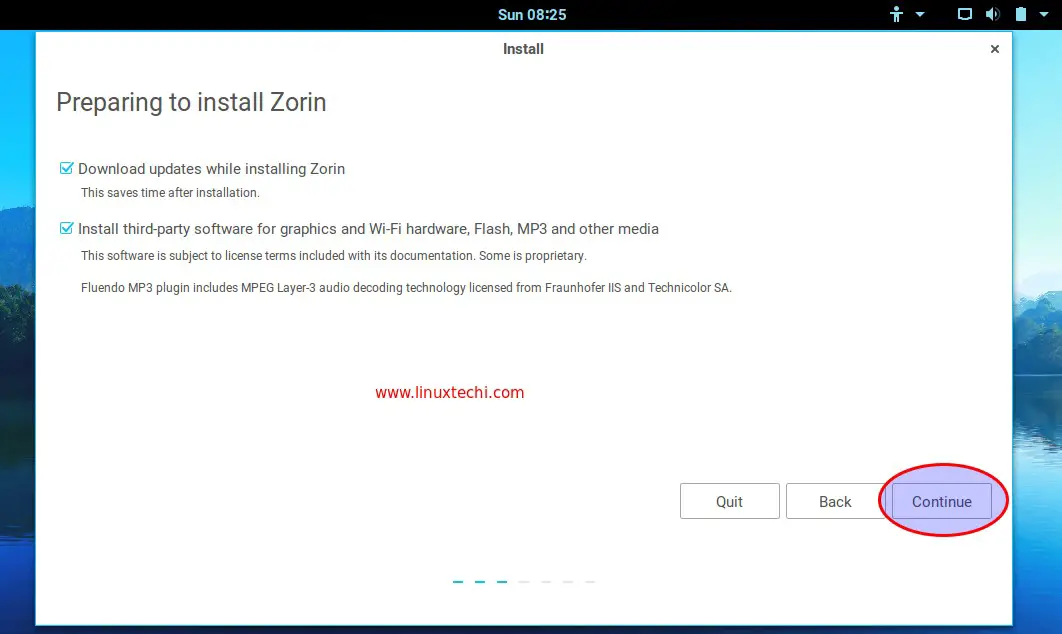
2) Preparing to Install Zorin OS 12
If your system is connected to the Internet then you can select
the below options shown in the screen, these option will apply the updates and
will install third party softwares for graphics, wifi and media.
Click on Continue
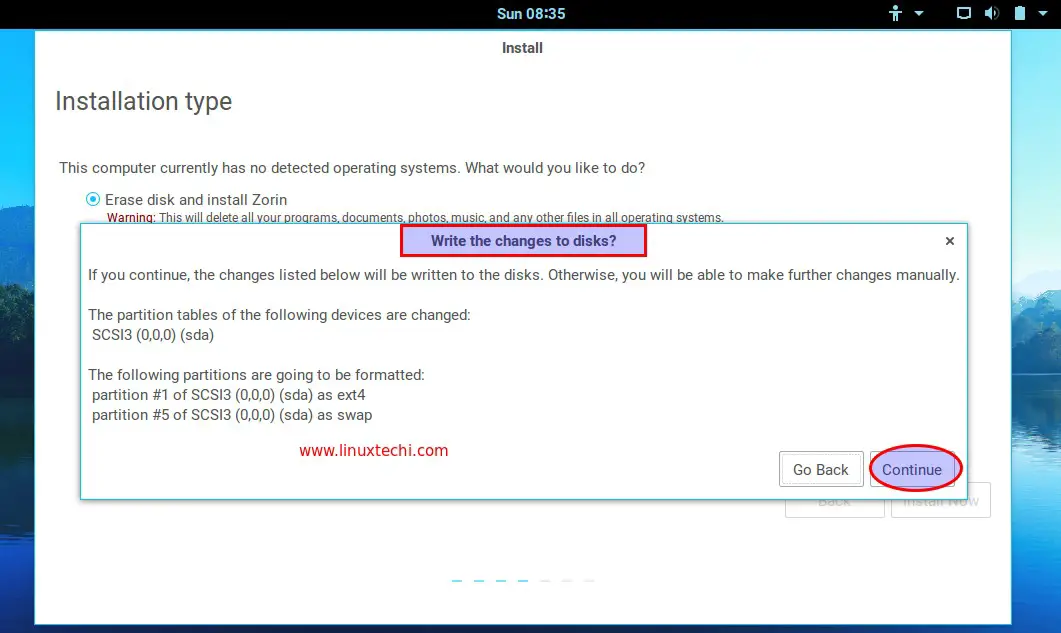
3) Select the Installation type as ‘Erase disk and Install Zorin’
In this step we can specify the installation
method, like how the disk will partitioned. We can create the manual partitions
by selecting the option “Something else“.
But in my case i am going to select the first option “Erase
and Install Zorin“, this option will create the partitions automatically
for you on the whole disk.
Click on “Install Now”
In the next window, click on continue to accept “Write changes to
the disk”
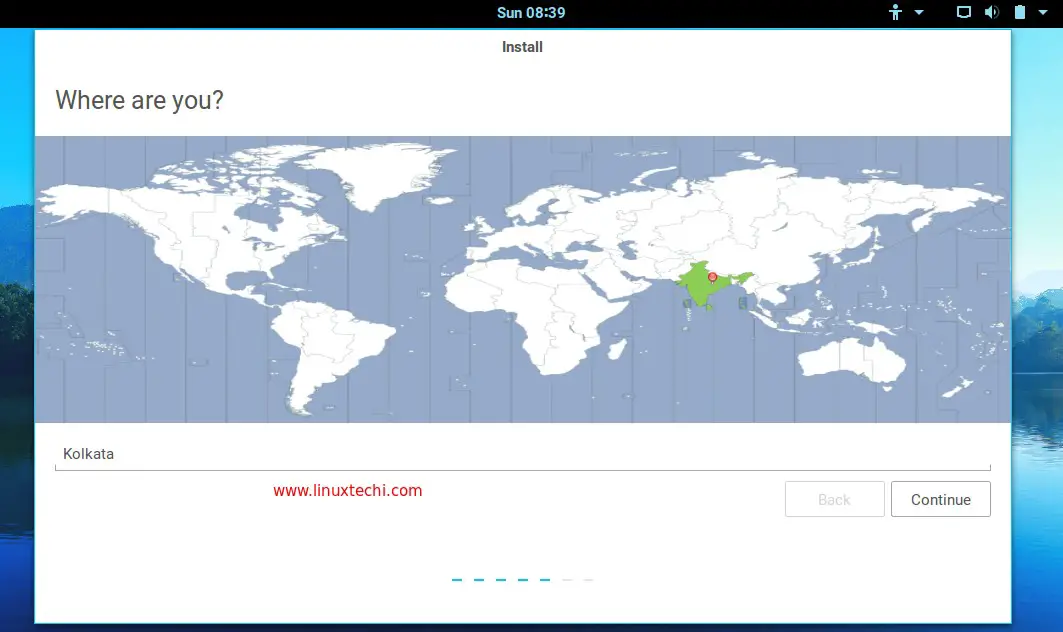
4) Select the Location and keyboard layout as per your setup
Select your location and click on continue…
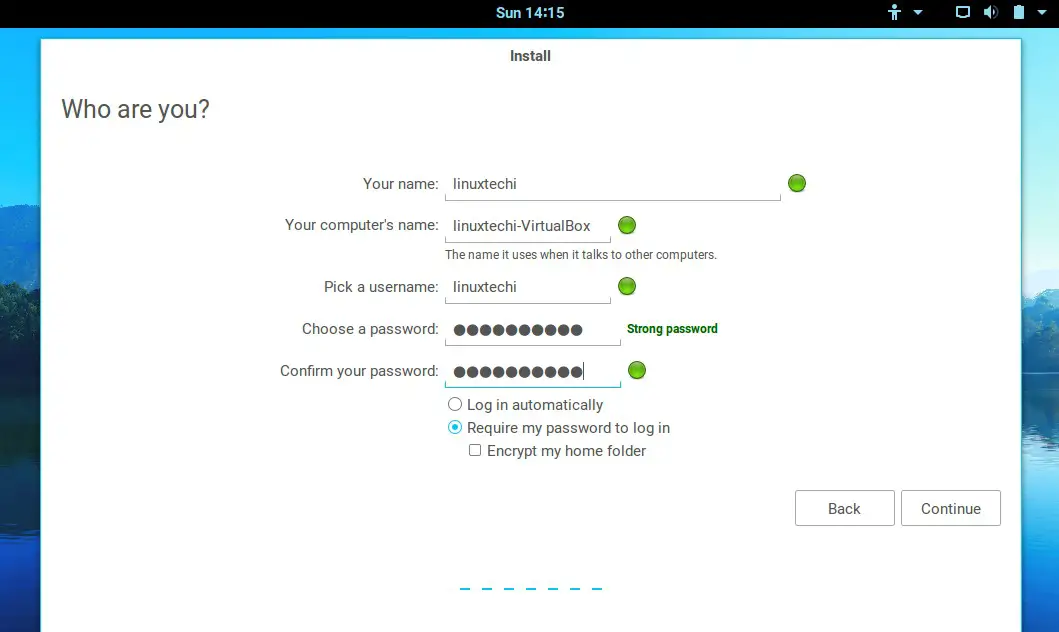
5) Choose the User Name, its password and Host name.
In this step specify the user name, its password and Host name
that you want to set during the installation
Click on Continue to start the installation
6) Zorin OS 12 Installation Progress
In this step we can see the installation has started and is in
progress.
Once the Installation is completed, installer will prompt us to
restart the system
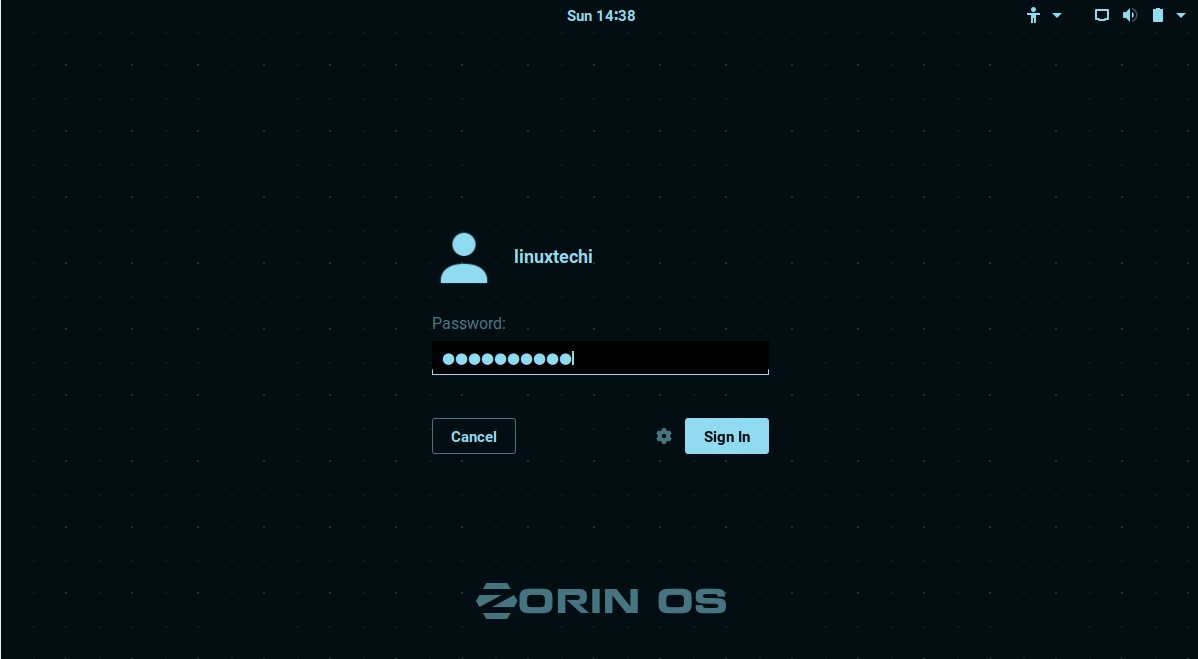
7) Login to the system – Use the same user name & password
that we set during installation
That’s all, Enjoy Zorin OS 12 and have fun


No comments:
Post a Comment